



libGDX Example Code : Experimenting Viewports with Text and Shape Animation for multiple screen Resolutions
I have already written a similar example to do text and line animation but I am writing this post to show how to animate text and Shape i.e. a line just below the text using viewports and cameras of LibGDX and the rendering is same on multiple screen resolutions .
The output of what we are doing will be as below :
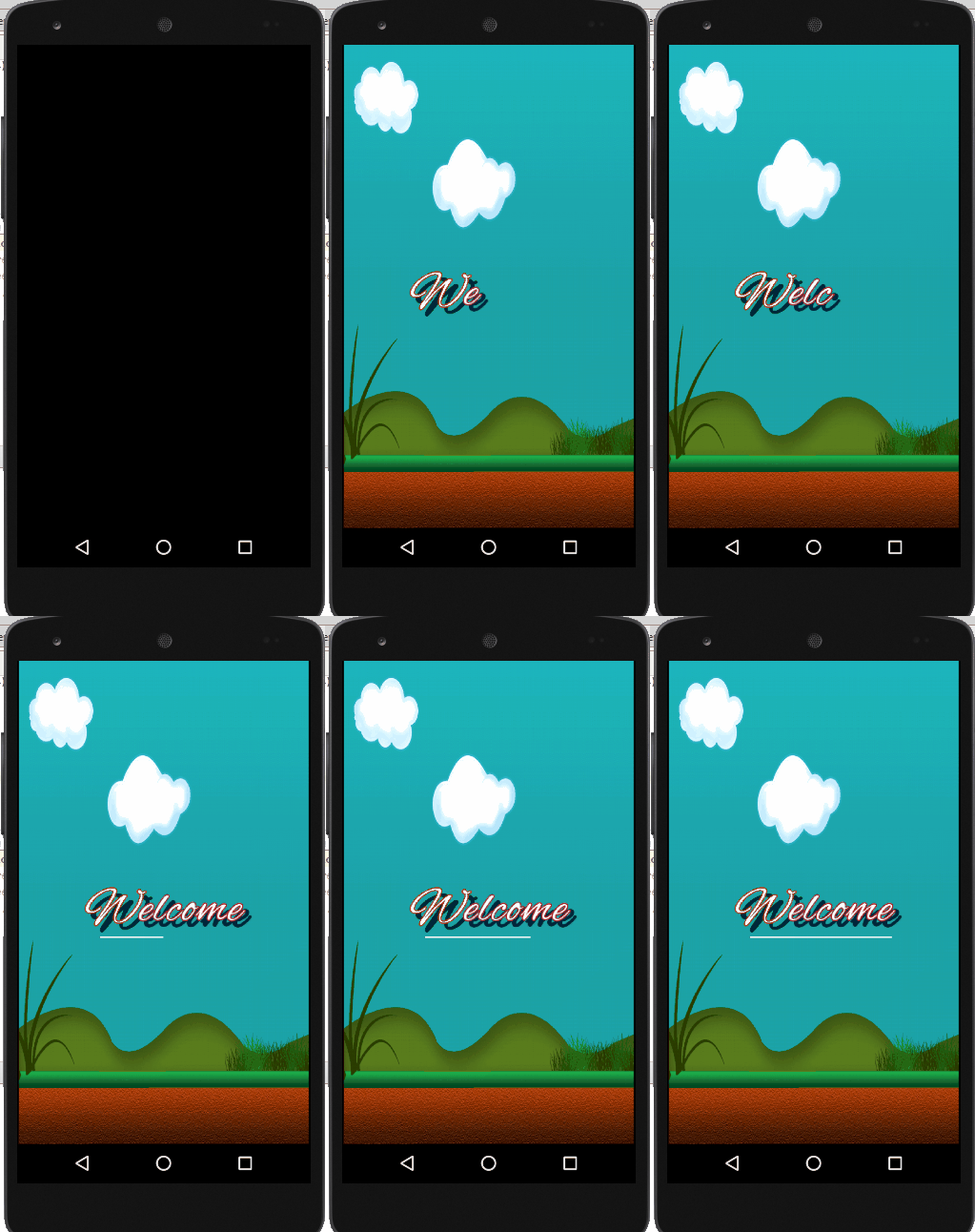
libGDX viewPorts Text and Line Animation
If you are interested , lets start to code . While setup I have checked in Freetype,Tools and Box2D and have selected both Eclipse and IDEA from Advanced menu .
We will be using screens interface .
Once your libGDX setup is done . Open your code Game class and put in following :
package com.versionpb.viewports;


import com.badlogic.gdx.Game;
import com.badlogic.gdx.graphics.Texture;
import com.badlogic.gdx.graphics.g2d.Batch;
import com.badlogic.gdx.graphics.g2d.SpriteBatch;

public class Viewportstrial extends Game {
	Texture img;
	private SpriteBatch batch;

	@Override
	public void create () {
        batch = new SpriteBatch();
        setScreen(new VPBSplashScreen(this));
	}

	@Override
    public void render () {
        super.render();
    }

    public Batch getBatch(){
        return this.batch;
    }
}
We have basically removed ApplicationAdapter and have used Game to extend it , created a batch which can be used by all screens of our program .
Lets create VPBSplashScreen class which is the screen where we will be rending the Text and creating a line underneath only text is written completely . Once we create the class implement Screen Interface to it and implement all methods . it should be as below :
public class VPBSplashScreen implements Screen {


    public VPBSplashScreen(final Viewportstrial game){
        this.game = game;
    }

    @Override
    public void show() {

    }

    @Override
    public void render(float delta) {

    }


    @Override
    public void resize(int width, int height) {

    }

    @Override
    public void pause() {

    }

    @Override
    public void resume() {

    }

    @Override
    public void hide() {

    }

    @Override
    public void dispose() {

    }
}
Lets add below variables which we will be using in a while . comments are placed on each variable :
    private Viewportstrial game;      // to get the real game object to
                                      //access spritebatch
    private Sprite splashBGImage;     //background Image
    private OrthographicCamera cam;   //orthographic camera
    private Viewport viewport;        //viewport

    private float Screen_Width,Screen_Height;  // Virtual screen Width and Height

    private String str;                       // String to be displayed on screen
    private float w, h , pixelsToScreen_Width_Ratio,pixelsToScreen_Height_Ratio;
    private float widthofLine;   // to get width of Line which will be drawn below Text
    private GlyphLayout glyphLayout;   // Glyph layout
    private ShapeRenderer srend;      //Shape Renderer

    private static final float TIMEPERCHAR = 0.1f; // play with this for dif speeds
    private float ctimeperchar = 0; // time per character for draw
    private int numchars = 0; // for parsing all chars in string float delta;

    private BitmapFont font;     // Bitmap font
    private FreeTypeFontGenerator generator;    //font generator
    private FreeTypeFontGenerator.FreeTypeFontParameter parameter;  // Parameter
Lets now create the constructor of our Screen and initialize following :
- Shape Renderer
- generator for freetype fonts
- Background Image
- Orthographic Camera
- viewport
- glyphlayout to get height and width of fonts so rendering can be done
Comments is done after each line for understanding in below code and some explanation is done right after the code .
public VPBSplashScreen(final Viewportstrial game){
        this.game = game;   // getting the object of our Game Class

        srend = new ShapeRenderer();  // initializing the Shape Renderer . We are using
                       //this to draw line , basically line will be a filled rectangle


        // Below Lines are generating font from free type i.e. .ttf
        generator = new FreeTypeFontGenerator(Gdx.files.internal("AlexBrush-Regular.ttf"));
        parameter = new FreeTypeFontGenerator.FreeTypeFontParameter();
        parameter.size = 80;
        parameter.color = Color.WHITE;
        parameter.borderWidth = 2;
        parameter.borderColor = Color.FIREBRICK;
        parameter.borderStraight= true;
        parameter.shadowOffsetX= 10;
        parameter.shadowOffsetY= 10;
        parameter.shadowColor= new Color(0, 0, 0.1f, 0.75f);
        parameter.flip = false;
        font = generator.generateFont(parameter);

      //initializing background Image
        splashBGImage = new Sprite(new Texture(Gdx.files.internal("NiceGameBg.png")));

       // Here we are defining of preferred screen width and height .
       //GameInfo is a class which keeps our constants . I will show it after a while
        Screen_Width = GameInfo.GAME_WIDTH;
        Screen_Height = GameInfo.GAME_HEIGHT;


/* below 2 lines are most important . What we are doing here is getting the Ratio of
Screen Width to our preferred Screen width I am calling this variable as
pixelsToScreen_Width_Ratio . Lets say width X Height of Samsung S3 Mobile is 720 X 1280
and I am keeping my preferred screen width and height as 480 X 800 on Desktop . To render
it properly and relatively we need these ratio s .

width x height of nexus 5 is 1080 X 1776 .
We can experiment this after full tutorial by changing values of DESKTOP_Game_Width and DESKTOP_Game_Height*/

        pixelsToScreen_Width_Ratio = (float) Gdx.graphics.getWidth() / Screen_Width ;
        pixelsToScreen_Height_Ratio = (float) Gdx.graphics.getHeight() / Screen_Height ;


        // initializing the Orthographic Camera and setting its position
        cam = new OrthographicCamera();

        cam.setToOrtho(false, Screen_Width/2 , Screen_Height/2 );
        cam.position.set(Screen_Width/2 , Screen_Height/2,0);

/* getting the aspect ratio so images can be adjusted accordingly , Not using in this example
but kept it just to tell that this is important as well  */
        float aspectRaio = (float)Gdx.graphics.getHeight() / (float) Gdx.graphics.getWidth() ;

 /* There are many view ports available . We will be using Fit Viewport as part of this
 example .I have kept others commented so you can experiment with them to get a feel
 of what all are they and how to use them .
 */
      //viewport = new FillViewport(Screen_Width  , Screen_Height,cam);
        viewport = new FitViewport(Screen_Width  , Screen_Height,cam);
        //viewport = new StretchViewport(Screen_Width  , Screen_Height,cam);
        //viewport = new ExtendViewport(Screen_Width  , Screen_Height,cam);
        //viewport = new ScreenViewport(cam);
        viewport.apply();

        //Below code to get the width and height of full Text so we can render it on screen accordingly
        str = GameInfo.str;
        glyphLayout = new GlyphLayout();
        glyphLayout.setText(font, str);
        w = glyphLayout.width;
        h = glyphLayout.height;

        /*initializing the widthOfLine to be drawn on screen below text .
    Initially its X co-ordinate should be same as Texts very first Letter
 So getting it by cam.viewpoetWidth/2 i.e. center of viewport minus full text length divided by 2 */
        widthofLine = cam.viewportWidth / 2 - w / 2;


 // These are for logging various screen values . This will definitely help once you run the code and run experiments
        Gdx.app.log("LOG","Screen_Width " + Screen_Width);
        Gdx.app.log("LOG","Screen_Height: " + Screen_Height);
        Gdx.app.log("LOG","camera.viewportWidth : " + cam.viewportWidth);
        Gdx.app.log("LOG","camera.viewportHeight : " + cam.viewportHeight);
        Gdx.app.log("LOG","glyphLayout.width i.e. w " + w);
        Gdx.app.log("LOG","glyphLayout.height i.e. h : " + h);
        Gdx.app.log("LOG","GameInfo.WIDTH: " + GameInfo.GAME_WIDTH);
        Gdx.app.log("LOG","GameInfo.HEIGHT: " + GameInfo.GAME_HEIGHT);
        Gdx.app.log("LOG","Gdx.graphics.getWidth(): " + Gdx.graphics.getWidth());
        Gdx.app.log("LOG","Gdx.graphics.getHeight(): " + Gdx.graphics.getHeight());
        Gdx.app.log("LOG","viewport.getWorldWidth(): " + viewport.getWorldWidth());
        Gdx.app.log("LOG","viewport.getWorldHeight(): " + viewport.getWorldHeight());
        Gdx.app.log("LOG","viewport.getScreenWidth()): " + viewport.getScreenWidth());
        Gdx.app.log("LOG","viewport.getScreenHeight(): " + viewport.getScreenHeight());
        Gdx.app.log("LOG","cam.position.x " + cam.position.x);
        Gdx.app.log("LOG","cam.position.y : " + cam.position.y);
        Gdx.app.log("LOG","Aspect Ratio: " + aspectRaio);
        Gdx.app.log("LOG","pixelsToScreen_Width_Ratio: " + pixelsToScreen_Width_Ratio);
        Gdx.app.log("LOG","pixelsToScreen_Height_Ratio: " + pixelsToScreen_Height_Ratio);


    }
below 2 lines are most important . What we are doing here is getting the Ratio of Screen Width to our preferred Screen width I am calling this variable as pixelsToScreen_Width_Ratio . Lets say width X Height of Samsung S3 Mobile is 720 X 1280 and I am keeping my preferred screen width and height as 480 X 800 on Desktop . To render it properly and relatively we need these ratio s .
For example width x height of nexus 5 is 1080 X 1776 . Samsung S3 Mobile is 720 X 1280 , Apple might be something else and Samsung s8 might be a different one .
We can experiment this after full tutorial by changing values of DESKTOP_Game_Width and DESKTOP_Game_Height
pixelsToScreen_Width_Ratio = (float) Gdx.graphics.getWidth() / Screen_Width ;
pixelsToScreen_Height_Ratio = (float) Gdx.graphics.getHeight() / Screen_Height ;
I have explained all the initialization code in comments and point to note is that most important is to get the Pixels to Screen Ratio so whenever we are running the code on different screens resolutions the result is always the same .
Another important thing is the choosing of the correct viewport for the code . There are a couple of viewports available by libGDX . I recommend you to go through libGDX wiki for viewports here libGDX viewports Wiki .
Also Once you download the code and run it , Try uncommenting all the viewports one by one and experiment by changing the value of Game_width and Game_height which is in GameInfo Class .
GameInfo Class is just a class to keep my constants . Below is what i have there .
package com.versionpb.viewports;

import com.badlogic.gdx.graphics.Color;

public class GameInfo {

    public static final float Desktop_GAME_WIDTH = 480;
    public static final float Desktop_GAME_HEIGHT = 800;

    public static final float LineOffsetX = 25;
    public static final float LineAdjustmentOffsetX = 75;
    public static final float GAME_WIDTH = 480;
    public static final float GAME_HEIGHT = 800;

    public static final float Rectangle_Width = 5;


    public static final Color SplashScreenUnderLineColor =Color.WHITE;
    public static final String str = "Welcome";
}
Here Str is the String which we will show on the Screen .
Game_WIDTH/GAME_HEIGHT is the value which you will use to experiment the viewport rendering
LineOffsetX is a value which we will move left from screen to render text .
LineAdjustmentOffSet is another weirdly interesting parameter which i will explain in a while
Below code contains our render method .
@Override
    public void render(float delta) {

        cam.update();    // important to update your camera at each step
        game.getBatch().setProjectionMatrix(cam.combined);  // setting projection matrix
        game.getBatch().begin();    //begin the batch
        //draw background Image
        game.getBatch().draw(splashBGImage,0,0,cam.viewportWidth,cam.viewportHeight);

       //Below piece of code to render the text on center of screen one at a time
        str=GameInfo.str;
        if (numchars < str.length()) { // if num of chars are lesser than string length , if all chars are not parsed
            ctimeperchar += delta; // character time per char to be added with delta
            if (ctimeperchar >= TIMEPERCHAR) { // if c time ie greater than time // for 1 char
                ctimeperchar = 0; // make ctimeper char again 0
                numchars++; // go to next character , to be printed
            }
        }
        str = str.substring(0, numchars); // get string to be printed
        font.draw(game.getBatch(), str, cam.viewportWidth / 2 - w / 2, cam.viewportHeight / 2 + h / 2);
        game.getBatch().end();
        //Here we check if full text is rendered only then start rendering the line
        if(str.equalsIgnoreCase(GameInfo.str)) {
            srend.begin(ShapeRenderer.ShapeType.Filled);    // using a filled shape i.e. filled rectangle
            srend.setColor(GameInfo.SplashScreenUnderLineColor);  // set color of rectangle

         /* draw rectangle on the screen . Here are those pixel to Screen ratios used .
Try running without these and  you will understand how important it is */
            srend.rectLine( (cam.viewportWidth / 2 - w / 2 + GameInfo.LineOffsetX) * pixelsToScreen_Width_Ratio,
                    (cam.viewportHeight/ 2 - h) * pixelsToScreen_Height_Ratio,
                    (widthofLine + GameInfo.LineOffsetX + GameInfo.LineAdjustmentOffsetX) * pixelsToScreen_Width_Ratio,
                    (cam.viewportHeight/ 2 - h) * pixelsToScreen_Height_Ratio,
                    GameInfo.Rectangle_Width);

            srend.end();
          // Logic to animate the line
            update();
        }

    }

    private void update(){
        if(widthofLine <  w )
            widthofLine += 10;

    }
Another important thing is our resize method and dispose method . You can see it from the full source code available at this github repository .
Once you download the code . To experiment . Just change the values of :
- DESKTOP_Game_WIDTH/DESKTOP_GAME_HEIGHT and try running code
- Str Value . Believe me this is very interesting . Change value from Welcome to VersionPB and you will see the line not covering the text properly and here comes the parameter LineAdjustmentOffSet into picture . Change its value to 0 for VersionPB and see .
- Experiment using different viewports in the main Screen Class .
Complete Running code with assest is at this repo
For any suggestions . Please leave a message .
Below is how this executed on a Desktop 480 X 800
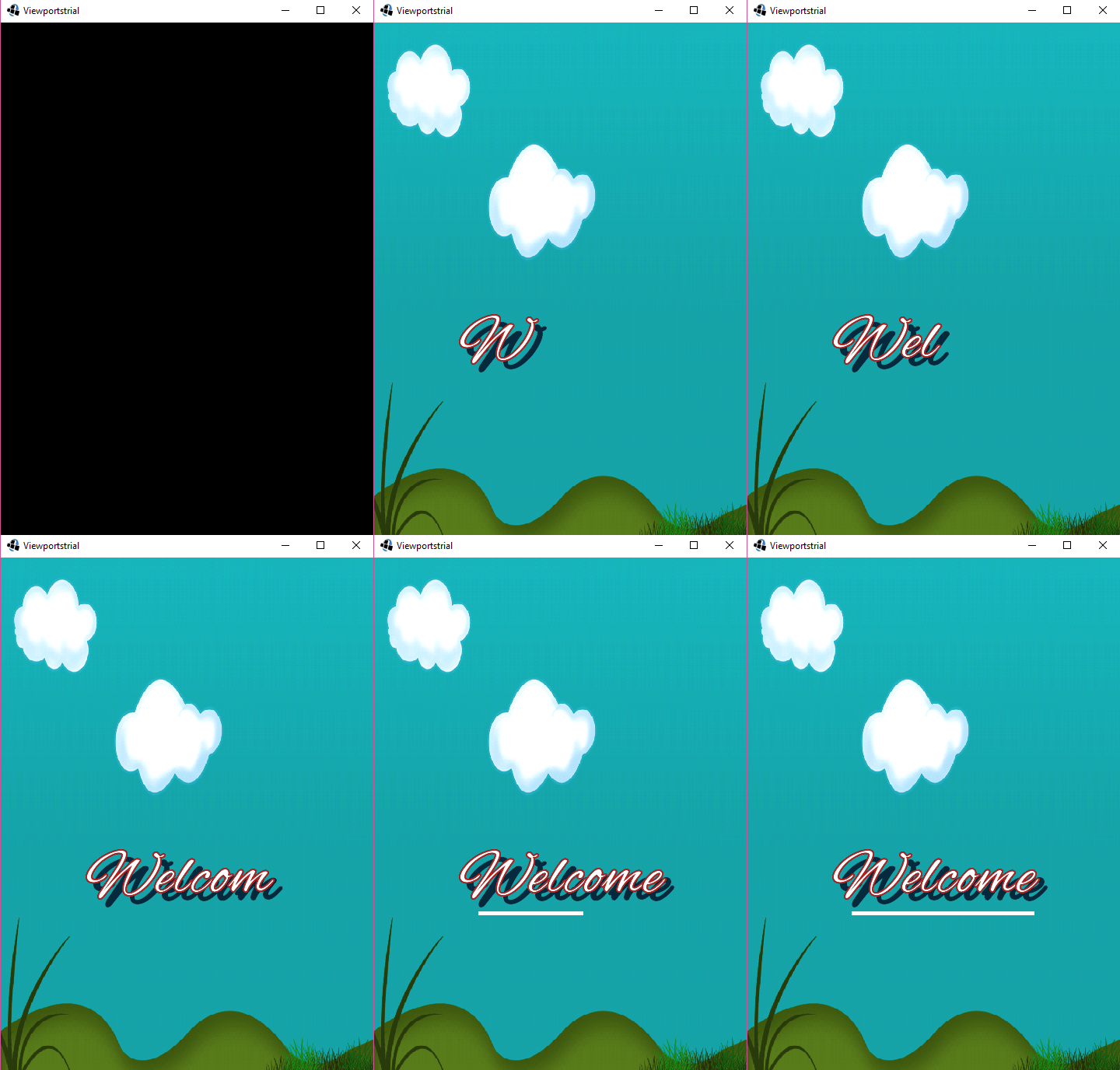
viewPorts Text 480 x 800 Desktop
See Below Example with String as VersionPB and DESKTOP_GAME_WIDTH and DESKTOP_GAME_HEIGHT as 900 x 600 .
public static final float Desktop_GAME_WIDTH = 900;
public static final float Desktop_GAME_HEIGHT = 600;

ViewPort Experiment 900x600
See Below Experiment with interesting Value with String as VersionPB and DESKTOP_GAME_WIDTH and DESKTOP_GAME_HEIGHT as 1080x 200 .
public static final float Desktop_GAME_WIDTH = 1080;
public static final float Desktop_GAME_HEIGHT = 200;

libGDX ViewPort Experiment 1080x200